
DRIVEWAY PICKLEBALL · SUPPORT
Driveway Pickleball A wall. A ball.
A very good dog.
How to play
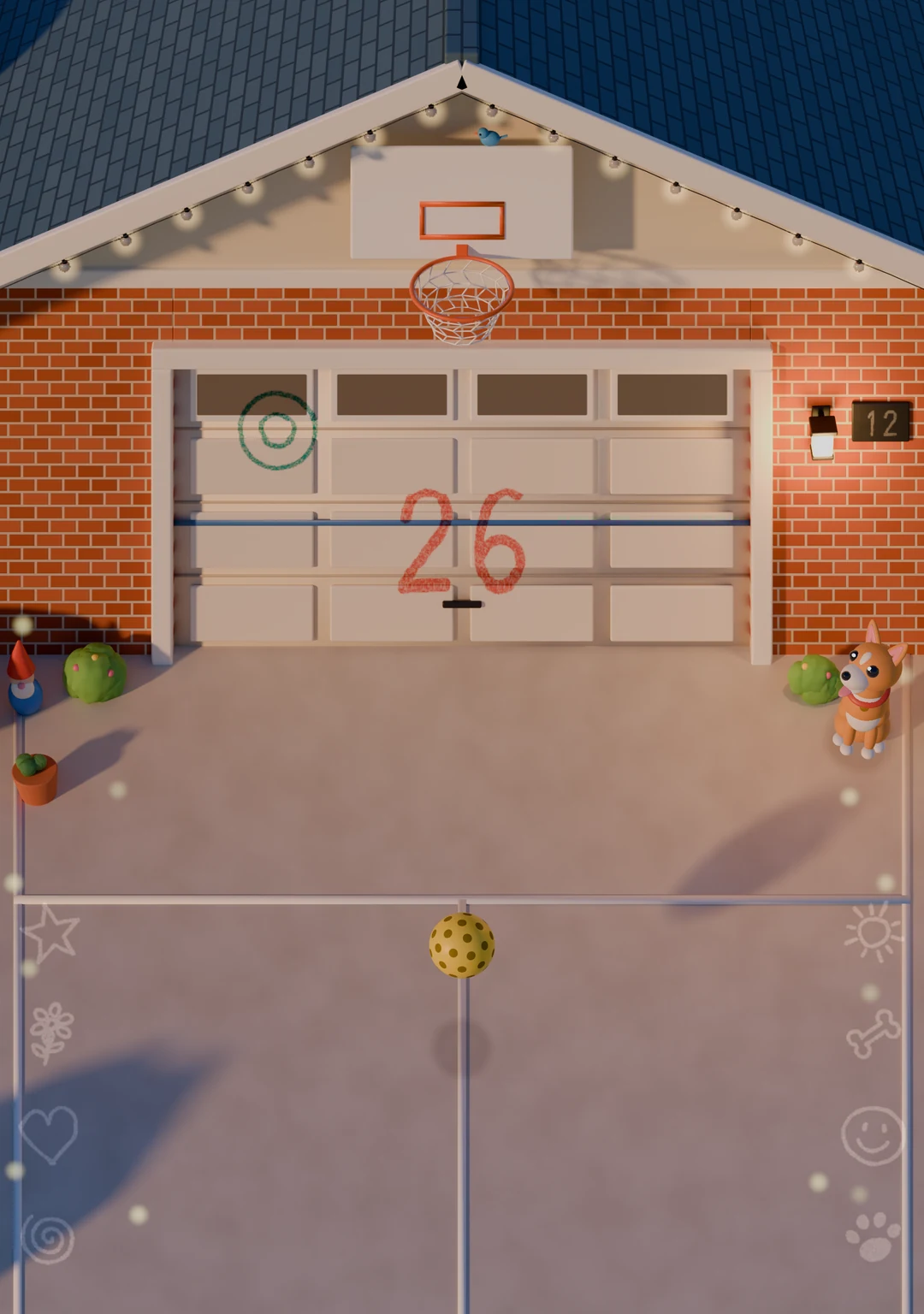
Swipe through the ball to send it at the garage door, then meet it on the way back. Aim for the chalk targets, windows and hoop. Every hit needs a real swipe; a resting finger does not count.
The number of your rally is chalked on the door, and your best stays on the plaque. Keep the rally going to wake the whole garage up.
Common questions
How do I open the garage?
Choose My Garage from the menu to explore Trophies, Dogs, Wardrobe, Courts and Progress. While the ball waits on the free court, you can also swipe up on the garage door to open it.
Which devices can play?
The game runs on compatible iPhone models with iOS 18.0 or later and compatible iPad models with iPadOS 18.0 or later. On a compatible iPhone Duo, the game supports the outer display, unfolded views and half-folded play. Other compatible iPhone models use an upright view, with the wall above the driveway. iPad supports native portrait and landscape play. The App Store lists compatibility for your device.
What stays free?
The garage court, corgi, skill game, daily goals and badges stay free. Score 10 in one rally to earn your first bandana. Bonus points count. There are no ads or energy timers.
What does Premium include?
Driveway Premium is one optional purchase with no subscription. It immediately opens the rooftop, beach and cabin courts and eight additional dog breeds. Four more outfits and two dog tricks are earned through play. My Garage shows each requirement. The purchase screen shows your local price.
You can try three rooftop practice rallies before buying. Practice does not overwrite your real saved progress.
I bought Premium. How do I restore it?
Open Explore Premium → Restore purchases using the Apple Account that owns the purchase. An internet connection is needed to contact Apple. Eligible Family Sharing entitlements are supported. If approval is pending, Premium becomes available after Apple approves and delivers the transaction.
Why is there no sound?
Open Sound in the game’s menu and check the sound switch and levels. Also check your device’s volume and Silent mode. The game respects Silent mode. Music, ambience and effects have their own controls.
How do I rename the dog?
While the ball waits, tap the dog’s chalked name. Type the new name and tap Done.
Where can I see my trophies?
Open My Garage → Trophies to see all 16 free badges. Earned badges show their colored chalk marks; unearned places show what to do next. Tap any badge to read its requirement and progress. Score goals include bonus points. Premium is not required to earn any badge.
How do rewards work?
Open My Garage → Progress to see your next goal. The daily warm-up counts 20 returns across rallies. Some rewards use your best rally, baskets or consecutive days played. Each reward shows its requirement. Buying Premium makes its content available, and earned rewards still require the stated goals.
Where is my progress saved?
Your game record is saved on your device and persists between sessions and ordinary app updates. It may be included in your device backups. There is no developer account or cross-device progress service. Restoring a purchase restores ownership, not a deleted local game record. Deleting the app removes its local progress.
Can I disable reminders?
Reminders are optional and scheduled on your device. You can change notification permission in your device’s Settings. Refusing reminders does not affect play.
Is there multiplayer or a leaderboard?
You play each rally solo. Sign in to Game Center to compare your highest garage rally score on Garage Best or track the 16 achievements that match your trophy shelf. Game Center is optional; the game, garage and trophies also work offline.
Does the game collect my data?
There is no developer account, advertising, analytics SDK or tracking. The app saves your game record locally. Apple handles purchases and restoration. When you use Game Center, Apple also handles achievement reporting and leaderboard scores. Read the privacy policy for details.
Still stuck?
Email us with your iPhone or iPad model, system version, app version and a short description of what happened. Please do not send passwords or payment details.